How Can We Help?
Setup guides, tips, and troubleshooting for all ROOXIS products.
Router Guides
Setup, configuration, firmware updates, and optimization guides for ROOXIS WiFi routers.
3 ArticlesExtender Guides
Installation, placement tips, and Ethernet setup for ROOXIS WiFi extenders.
3 ArticlesCamera Guides
Setup, Alexa integration, AI detection, and night vision guides for ROOXIS cameras.
4 ArticlesBrowse Help Articles
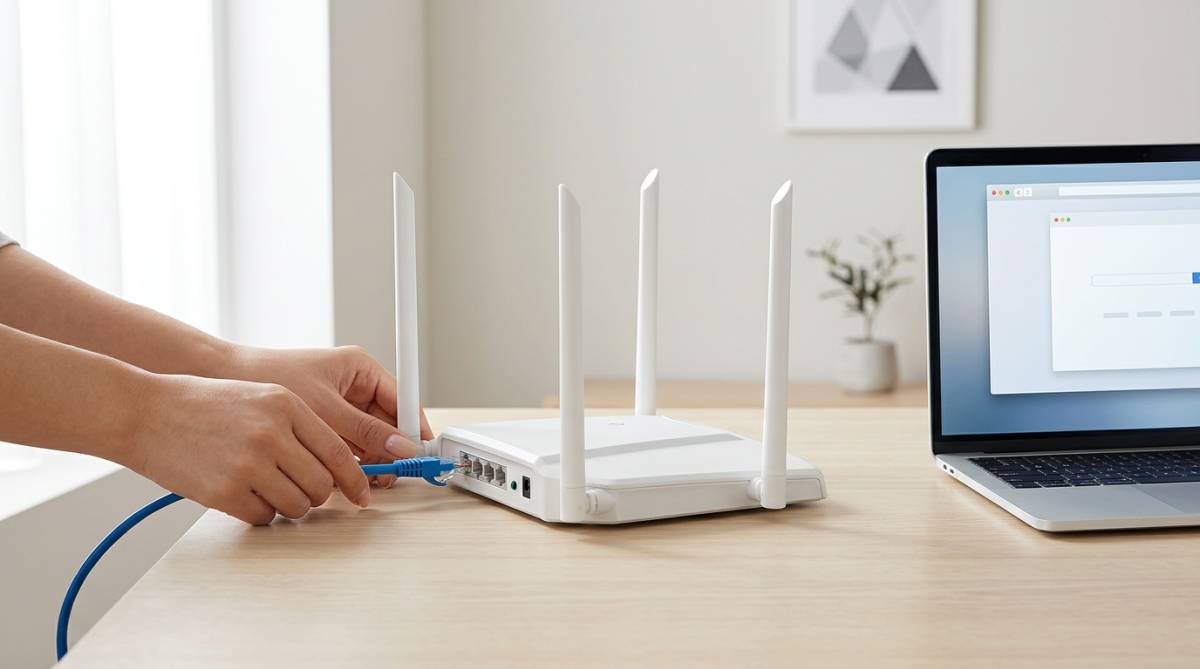
How to Set Up Your ROOXIS AC1200 WiFi Router
Step-by-step guide to unbox, connect, and configure your ROOXIS AC1200 dual-band router in under 10 minutes.
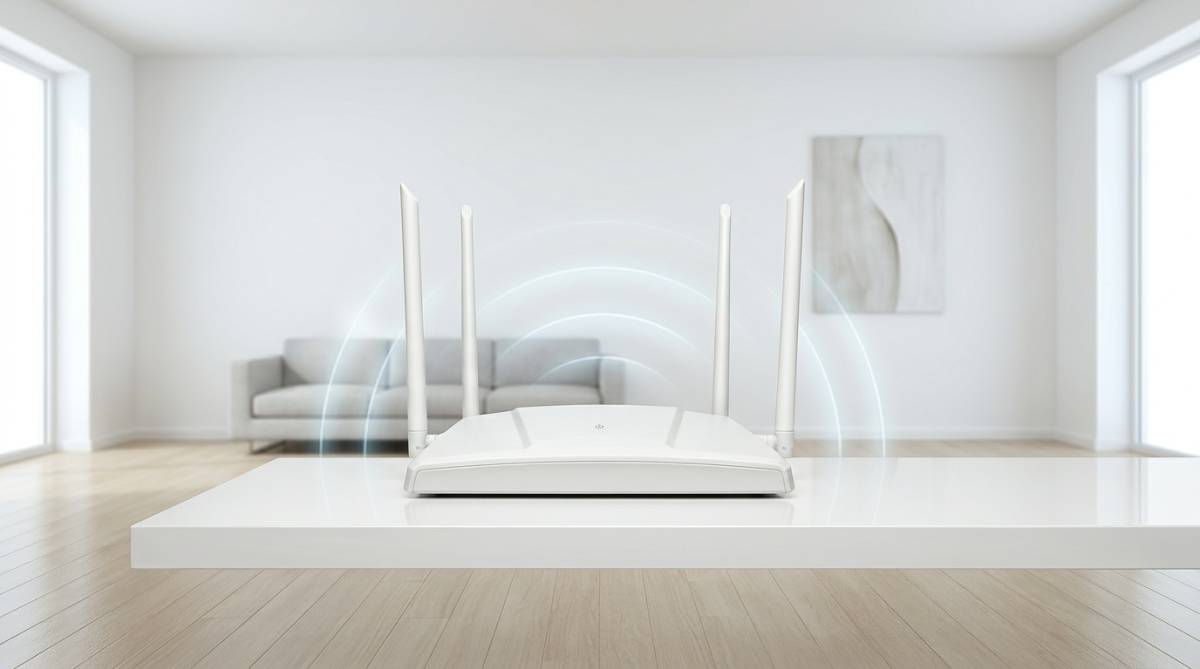
Best Router Placement Tips for Maximum WiFi Coverage
Optimize your ROOXIS router placement to get the strongest WiFi signal in every room of your home.
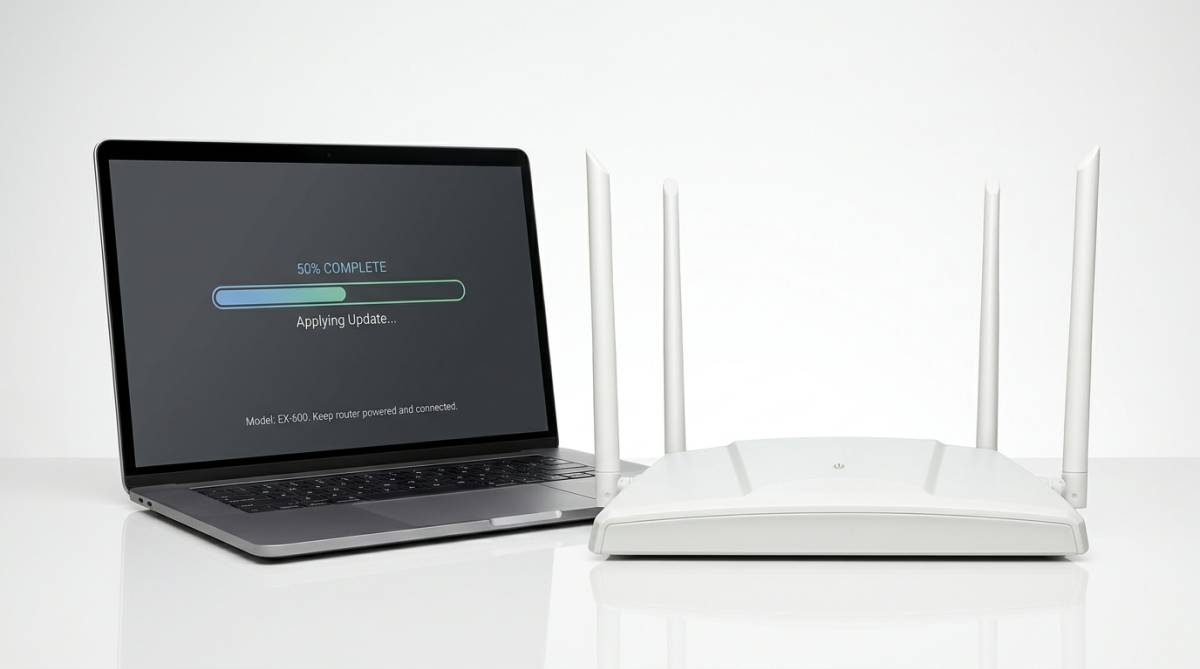
How to Update Your ROOXIS Router Firmware
Keep your router secure and performing at its best with the latest firmware updates.
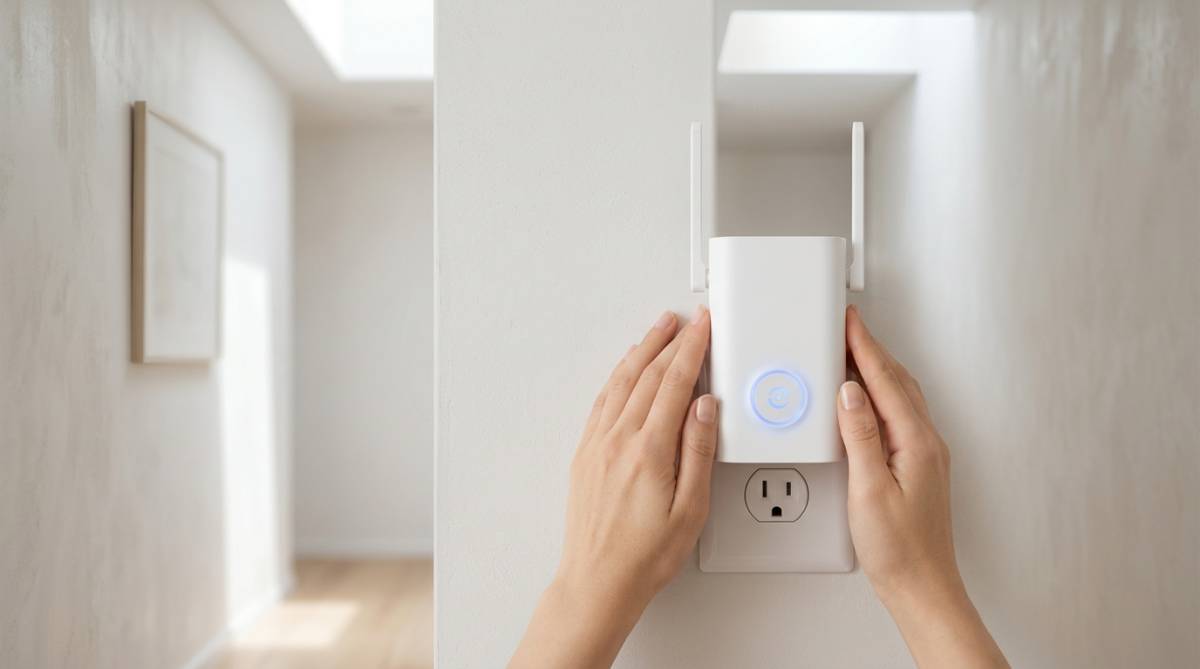
How to Set Up Your ROOXIS AC1200 WiFi Extender
Complete setup guide for the ROOXIS AC1200 WiFi Extender — eliminate dead zones in minutes using WPS or manual setup.
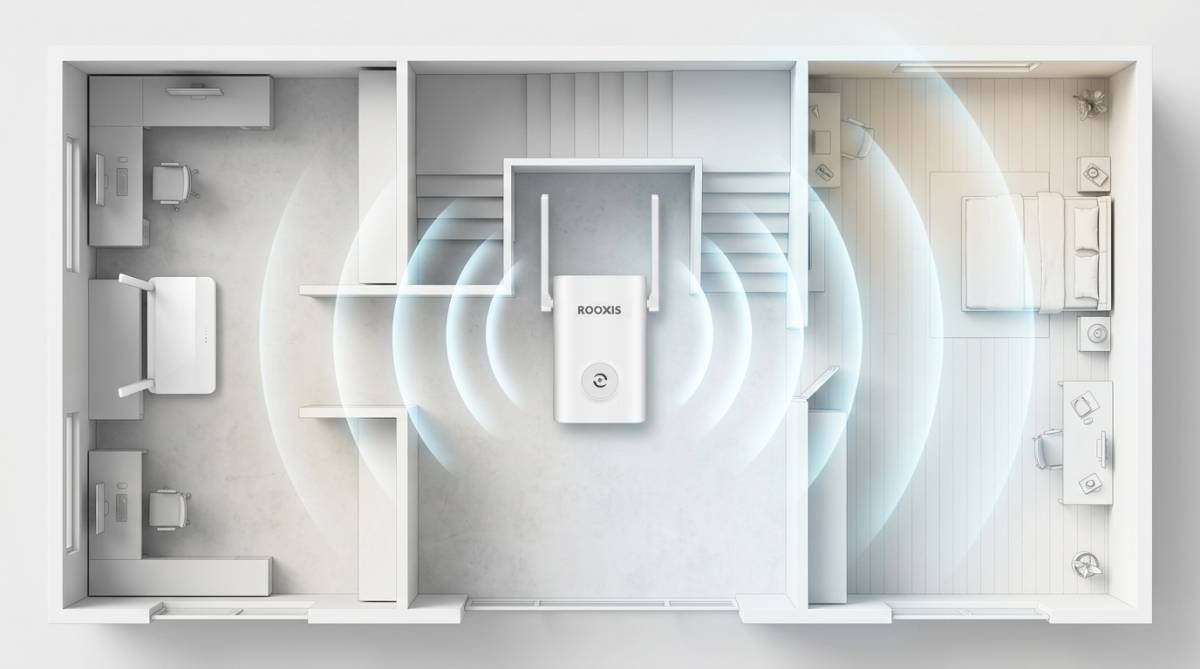
Where to Place Your WiFi Extender for Best Coverage
Find the perfect spot for your ROOXIS WiFi Extender to maximize coverage and eliminate dead zones.
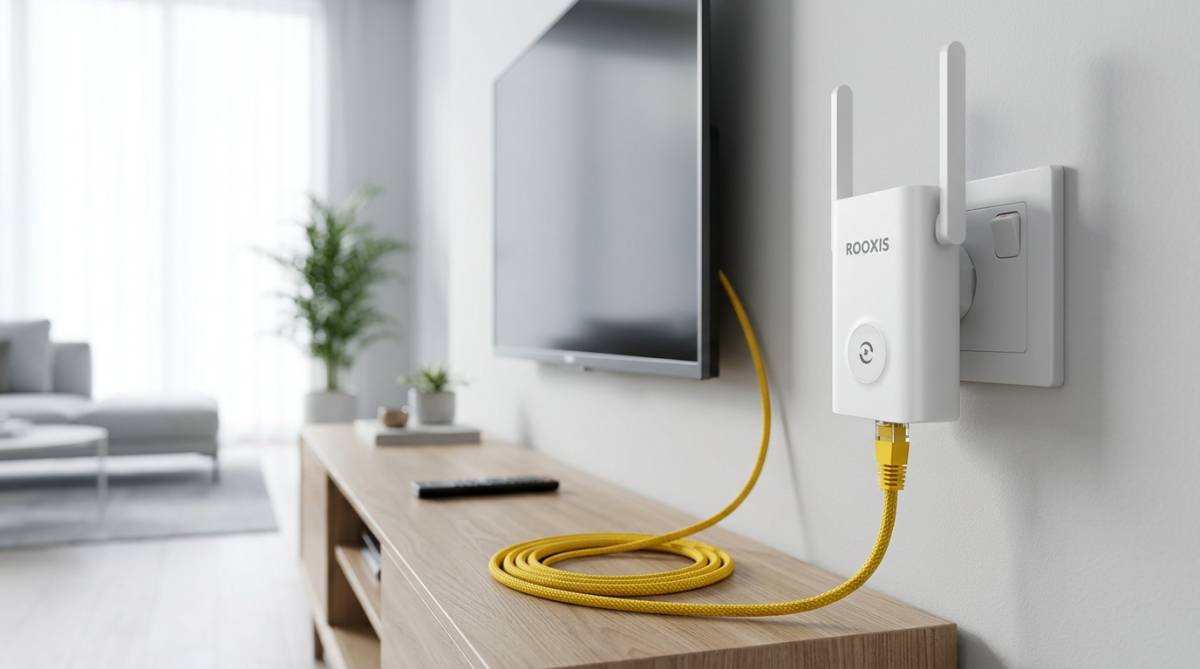
How to Use the Ethernet Port on Your ROOXIS Extender
Connect smart TVs, gaming consoles, and desktops directly to your extender's Ethernet port for a more stable connection.
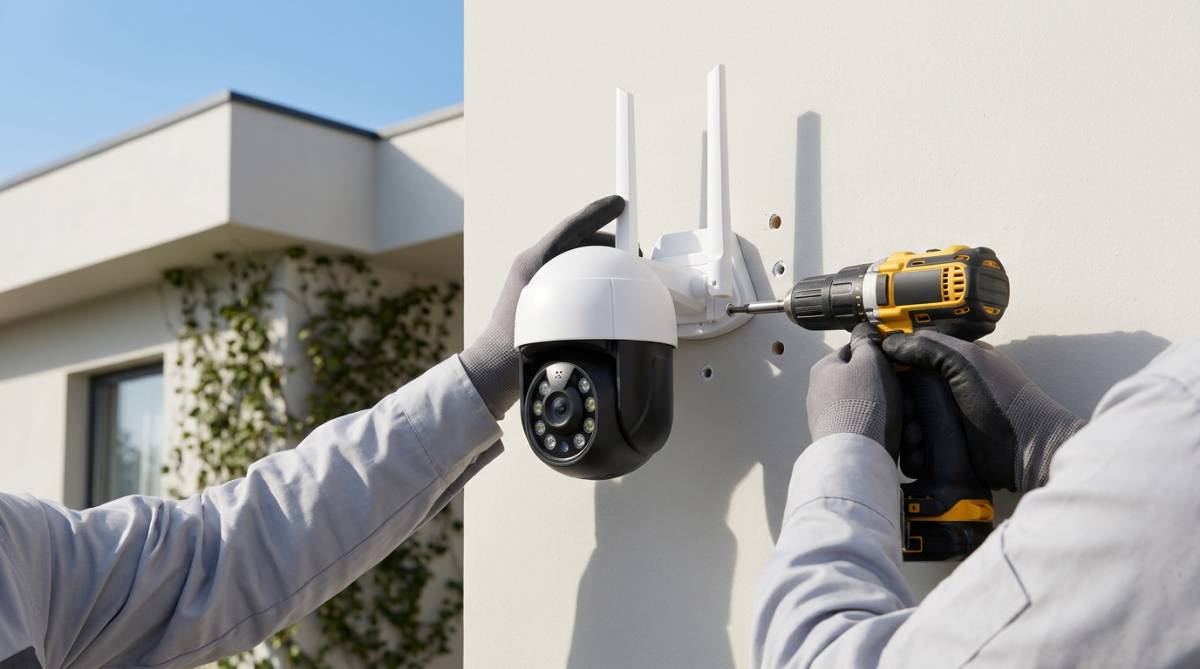
How to Set Up Your ROOXIS 3K Outdoor Security Camera
Complete setup guide for the ROOXIS 3K 5MP outdoor security camera — from unboxing to your first live view.
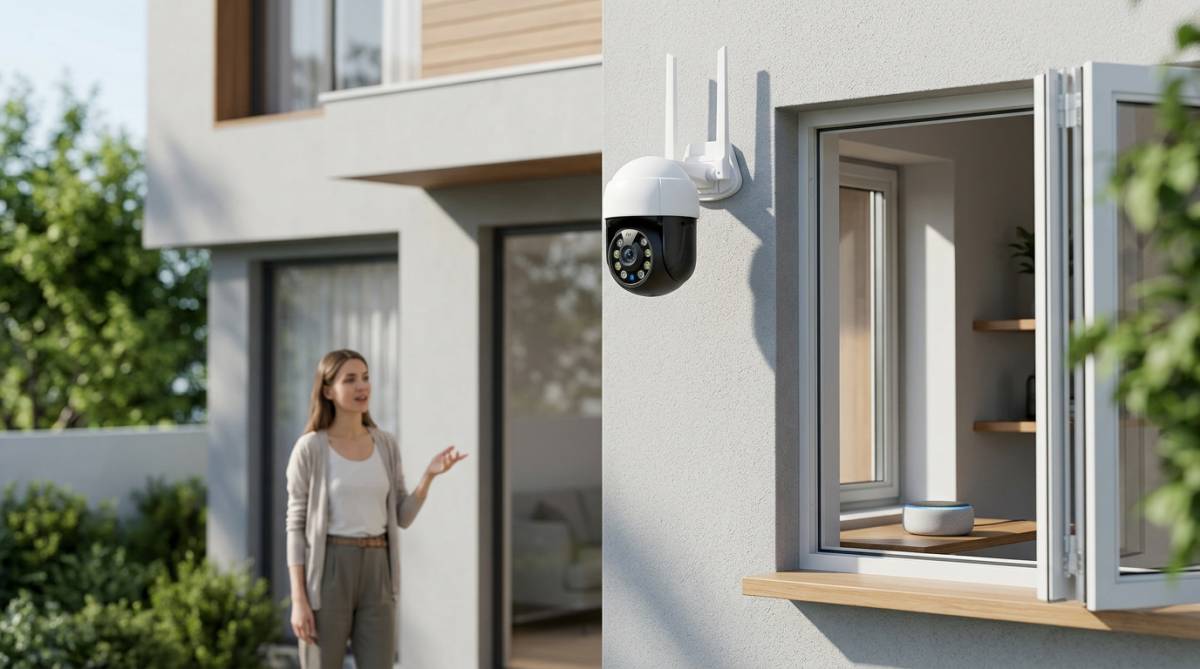
How to Connect Your ROOXIS Camera to Alexa
View your ROOXIS security camera feed on Echo Show and other Alexa devices with simple voice commands.
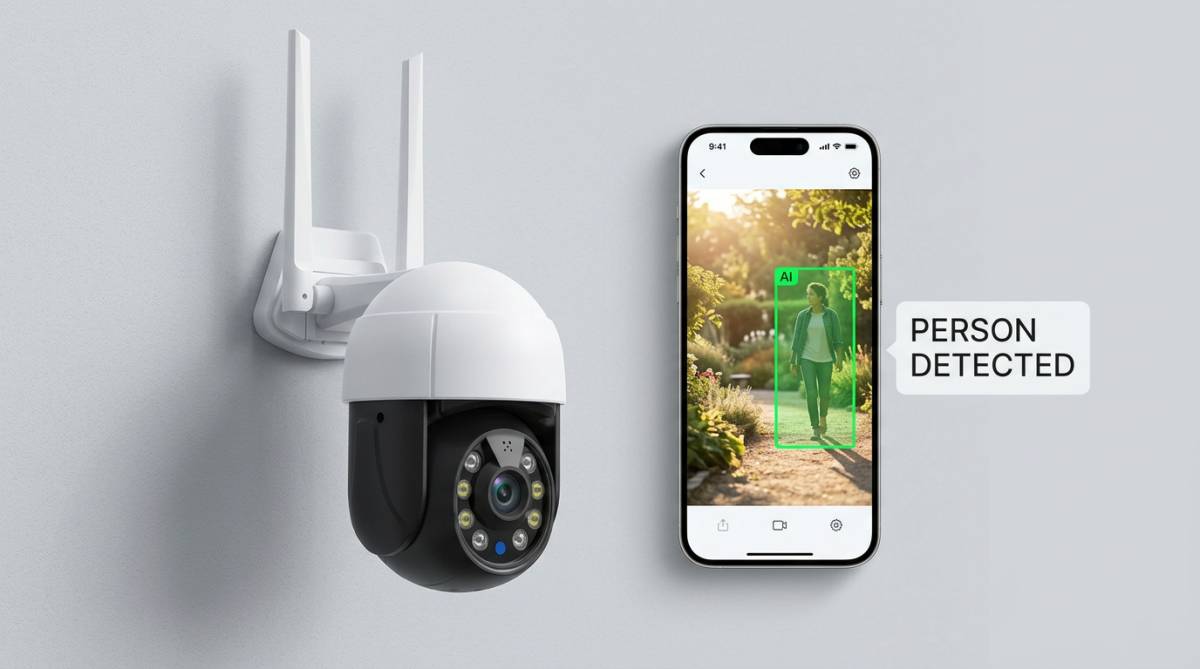
Understanding Your Camera's AI Detection Features
Get the most out of your ROOXIS camera's AI-powered human detection, motion zones, and smart alerts.
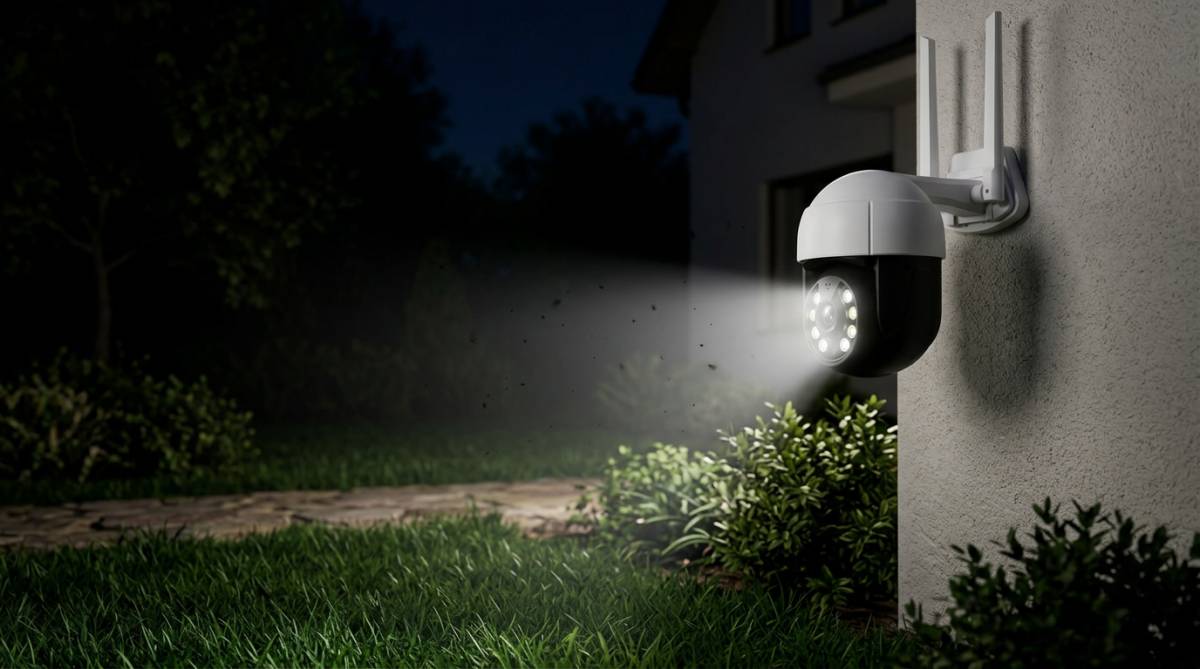
How to Set Up Night Vision on Your ROOXIS Camera
Configure color night vision, IR mode, and spotlight settings for crystal-clear footage day and night.
Quick reference
Login addresses, default network names and reset steps for every ROOXIS device.
WiFi Router (AC1200)
- Settings page
- 192.168.10.1 in any browser — not 192.168.1.1, which other brands use.
- Default WiFi names
- @ROOXIS-XXXX-2.4G and @ROOXIS-XXXX-5G (XXXX = last 4 characters of the MAC address).
- Light
- Solid blue when connected; blinks while data is moving.
- Factory reset
- Hold RESET for 5+ seconds until the light goes off.
WiFi Extender (AC1200)
- Settings page
- 192.168.8.1 or home.to in a browser.
- Extended WiFi names
- YourNetwork_EX (2.4GHz) and YourNetwork_5G_EX (5GHz).
- LED colors
- Blue = good signal · Yellow = too far from the router · Red = not connected.
- Factory reset
- Hold RST until the LED flashes red.
Security Cameras
- App
- Smart Life (free) — or Tuya Smart with the same account.
- WiFi
- 2.4GHz only. Choose your router's 2.4GHz network during setup.
- Storage
- MicroSD card up to 128GB; cloud storage optional.
- Voice assistants
- Link the Smart Life skill in Alexa or Google Home.
Getting support
Email support@rooxis.com, call +1 (800) 865-6412 (Monday to Friday, 9am to 5pm EST), or send a message through our contact form.
Your product model, your Amazon order ID, what you were trying to do, and what happened instead — the light color on the device and any error message help a lot. If you've registered your product, we already have your purchase on file.
Factory-reset the device and set it up again: hold the router's RESET button for 5+ seconds until the light goes off, or hold the extender's RST button until its LED flashes red. Reset erases your settings, so note your WiFi name first if you want to reuse it.
Short answers to common questions are on our FAQ page; the articles above walk through each task step by step.
Can't Find What You Need?
Our support team is ready to help. Send us a message and we will get back to you within 24 hours.