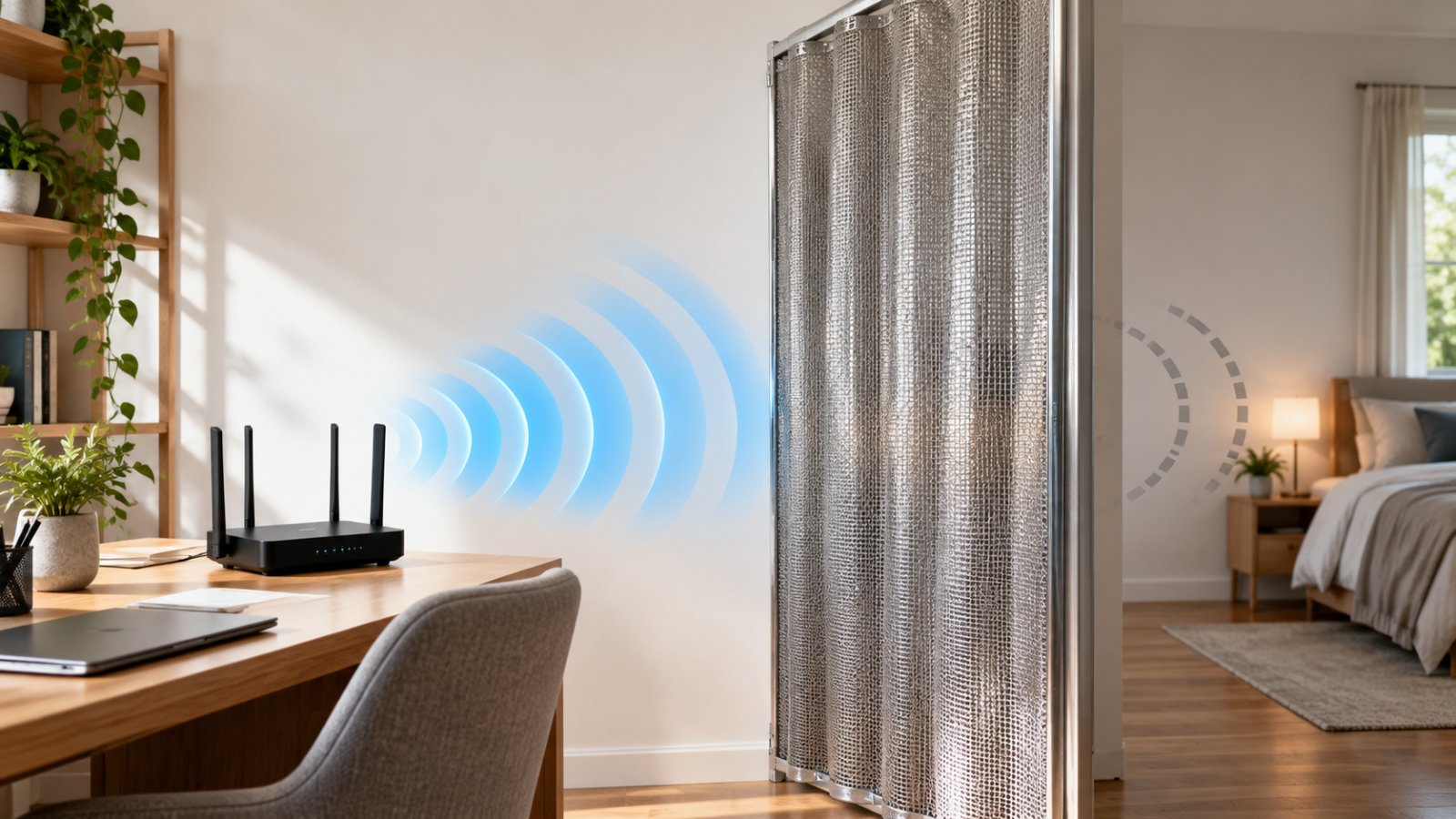
If windows did not detect any networking hardware, the first thing to check is whether your network adapter appears in Device Manager. This error usually means Windows cannot recognize or start the hardware responsible for WiFi or Ethernet connections. A missing driver, disabled adapter, incorrect firmware setting, or hardware fault could be responsible.
The problem can affect both Windows 11 and Windows 10. It sometimes appears after a system update, a fresh Windows installation, or an unexpected shutdown. You might find that the WiFi option has disappeared completely, or that an Ethernet cable no longer establishes a connection.
Before replacing your router or purchasing a USB WiFi adapter, find out whether Windows can actually detect the networking hardware. That one check will determine which troubleshooting steps are worth trying.
Windows Did Not Detect Any Networking Hardware: Understanding the Error
Windows needs a working network adapter to communicate with your router and other network devices.
Most laptops have an internal wireless adapter, also called a WLAN Card. Desktop computers may use an integrated Ethernet Controller, a PCIe WiFi card, or a USB wireless adapter.
Each device also needs a compatible driver. The driver allows Windows to communicate with the hardware and control its functions.
When the adapter is disabled, its driver fails to load, or the hardware stops responding, Windows may no longer recognize it as an available network connection.
Common symptoms include:
-
The WiFi option disappears from Windows Settings.
-
No wireless networks appear when you open the connection menu.
-
Device Manager does not list the expected wireless adapter.
-
The Ethernet connection remains unavailable even with a cable connected.
-
Windows reports that no networking hardware was detected.
-
A network adapter appears in Device Manager with a warning symbol.
-
The adapter disappears after restarting or waking the computer from sleep.
First, identify whether the problem is hardware detection or internet connectivity.
These are different situations.
If your computer recognizes its wireless adapter but cannot connect to WiFi, the issue may involve the password, wireless signal, router configuration, or network settings.
If Windows cannot detect the adapter at all, changing your WiFi password or restarting the router is unlikely to solve it.
Begin by checking the adapter itself.
What Causes Windows to Miss Network Hardware?

There is no single cause behind this error. Sometimes the fix is as simple as enabling an adapter. Other cases involve incompatible drivers or a failed internal network card.
The circumstances in which the problem started can provide useful clues.
1. Missing or damaged drivers
Windows uses drivers to recognize and communicate with network hardware.
If the correct driver is missing, Windows may identify the device only as an unknown Network Controller.
This commonly happens after reinstalling Windows or replacing an internal wireless card.
A damaged driver installation can also prevent a previously working adapter from starting correctly.
2. Windows update problems
Windows updates occasionally replace hardware drivers.
Although driver updates normally improve compatibility, a particular version may not work correctly with every adapter.
If WiFi disappeared immediately after an update, check whether Windows installed a new network driver.
Returning to the previous driver can help when the rollback option is available.
3. Disabled network adapters
A wireless adapter can be disabled through Device Manager, a laptop's wireless controls, or certain BIOS/UEFI settings.
Some laptops use a keyboard shortcut to enable or disable wireless networking.
If the adapter was accidentally turned off, it may not be available for normal connections.
4. Power management issues
Windows manages device power consumption, particularly on laptops.
Some network adapters may fail to resume correctly after sleep or hibernation because of a driver, firmware, or power management problem.
If WiFi disappears only after the computer wakes up, this is worth investigating.
5. Faulty network hardware
Internal wireless cards can fail.
Possible causes include electrical damage, component failure, or a loose internal connection.
A failed Ethernet Controller or USB WiFi adapter can produce similar symptoms.
Hardware failure becomes more likely when the device remains missing after driver installation, firmware checks, and manufacturer diagnostics.
6. USB connection problems
If you use a USB WiFi adapter, the adapter itself may be working while the computer's USB connection is unreliable.
A damaged USB port, loose connector, or incompatible driver can prevent recognition.
Testing another port is a useful early check.
Common symptoms and what they suggest
| Symptom | Possible Cause | First Thing to Check |
|---|---|---|
| WiFi option is missing | Disabled adapter or driver problem | Device Manager |
| Network Controller appears under Other devices | Missing network driver | Manufacturer driver |
| Yellow warning symbol appears on an adapter | Device or driver initialization issue | Device Properties |
| WiFi disappears after sleep | Power management or driver issue | Adapter power settings |
| Ethernet Controller is missing | Firmware, driver, or hardware problem | Device Manager and BIOS/UEFI |
| USB WiFi adapter is not recognized | USB connection or device failure | Another USB port |
| Adapter exists but no WiFi networks appear | Wireless settings or signal issue | WiFi settings and nearby networks |
The table is a starting point, not a final diagnosis. Two computers showing the same symptom may need different fixes.
Quick Troubleshooting Checks Before Deep Diagnostics
Start with a few basic checks before uninstalling drivers or resetting network settings.
These take little effort and can rule out problems that are easy to overlook.
1. Restart Windows properly
Save your work, open Start, select Power, and choose Restart.
A full restart reloads drivers and initializes hardware again.
Simply closing a laptop lid usually puts it into sleep mode, which may leave the original problem unchanged.
After restarting, check whether the WiFi option returns.
2. Turn off Airplane mode
Open the network controls from the taskbar.
Make sure Airplane mode is disabled.
On some laptops, Airplane mode can also be controlled using a keyboard shortcut.
Check your computer's instructions if you are unsure which key controls wireless connections.
3. Check for a physical wireless switch
Some laptops have a dedicated WiFi switch or wireless function key.
Make sure it is enabled.
The switch location and keyboard combination vary between manufacturers, so avoid relying on instructions intended for a different laptop model.
4. Try Ethernet if available
Connect the computer to a working router using an Ethernet cable.
If Ethernet works but WiFi does not, the problem is more likely to involve the wireless adapter or its configuration.
If neither connection appears in Windows, inspect both adapters in Device Manager.
A laptop without an Ethernet port will need a compatible external adapter for this test.
5. Check another device on the same network
Try connecting a phone or another laptop to the home WiFi.
If those devices work normally, the router is probably not the immediate cause of the missing Windows adapter.
If every device has lost connectivity, investigate the router or internet service separately.
6. Reconnect an external WiFi adapter
If you use a USB WiFi adapter, unplug it and connect it directly to another suitable USB port.
Avoid a USB hub during the initial test.
Wait for Windows to recognize the device, then check Device Manager.
If none of these checks restores the adapter, continue with the steps below.
Step 1: Check Device Manager for Hidden or Disabled Adapters
Device Manager is the best place to investigate a missing network adapter.
It shows hardware recognized by Windows, installed drivers, and device status information.
You do not need an internet connection to open it.
Open Device Manager
-
Right-click the Start button.
-
Select Device Manager.
-
Find Network adapters.
-
Expand the category.
-
Look for the expected WiFi or Ethernet adapter.
A wireless adapter may contain terms such as Wireless, WiFi, WLAN, or 802.11.
A wired adapter may include Ethernet, LAN, or Gigabit in its name.
You may also see virtual adapters created by VPN software or virtualization applications. Those entries do not mean your physical wireless card is working.
If the expected adapter appears, inspect its status before making changes.
Check whether the adapter is disabled
Right-click the wireless adapter.
If the menu contains Enable device, select it.
Wait briefly and check whether Windows makes the adapter available.
If the menu contains Disable device instead, the adapter is already enabled.
Next, open Properties and select the General tab.
Read the Device status information.
Windows may display a specific reason why the device cannot start. That message can help narrow down whether the problem involves a driver or hardware initialization.
Avoid disabling other network devices while investigating one adapter.
Show hidden devices
In Device Manager, select View, then Show hidden devices.
Expand Network adapters again.
Some entries may appear faded.
A faded adapter can represent hardware that was previously installed but is not currently connected or present.
For example, an old USB WiFi adapter may remain listed after you remove it.
A hidden adapter entry does not prove that the hardware is currently detected.
If your internal WiFi card appears only as a faded device, continue checking whether Windows can recognize it as present hardware.
Scan for hardware changes
Device Manager can ask Windows to check connected hardware again.
-
Select your computer name at the top of Device Manager.
-
Open Action.
-
Select Scan for hardware changes.
-
Allow the scan to finish.
-
Recheck Network adapters.
If the missing device returns, open its Properties and inspect the driver information.
If it remains absent, move to the next check.
Check Other devices
Expand Other devices in Device Manager if the category is available.
Look for entries such as Network Controller, Ethernet Controller, or Unknown device.
Windows may recognize the component but lack the driver needed to identify it correctly.
To investigate:
-
Right-click the unidentified device.
-
Select Properties.
-
Open the Details tab.
-
Select Hardware IDs from the Property menu.
-
Review the displayed identifiers.
Hardware identifiers can help identify the adapter manufacturer and model.
Use them alongside your laptop or motherboard model when looking for drivers on an official support website.
Do not install the first driver you find simply because its name includes Wireless or Ethernet.
Step 2: Reinstall or Update Network Adapter Drivers
Driver problems are a common cause of network adapter not detected windows errors.
A driver must match the actual hardware and support the installed operating system.
Installing an unrelated driver may accomplish nothing or create additional problems.
Download the correct driver
If the affected computer cannot connect to the internet, use another device to download the appropriate package.
For a laptop:
-
Find the exact laptop model.
-
Open the manufacturer's official support website.
-
Locate the driver download section.
-
Select your supported Windows version.
-
Download the appropriate wireless or Ethernet driver.
-
Transfer the file using a USB flash drive.
For a desktop computer, check the motherboard manufacturer or the manufacturer of the installed network adapter.
Some computer models ship with different wireless cards depending on their configuration.
If several drivers are listed, identify the actual adapter before choosing one.
Do not rely on third-party driver updater utilities. Official manufacturer drivers and Windows Update are safer places to start.
Update a driver through Device Manager
If the adapter is visible in Device Manager:
-
Right-click the affected network adapter.
-
Select Update driver.
-
Choose Browse my computer for drivers if the correct driver files are already downloaded.
-
Select the folder containing the extracted driver files.
-
Follow the installation prompts.
-
Restart if required.
If the manufacturer provides a dedicated driver installer, follow its instructions instead.
A compressed download may need to be extracted before Device Manager can locate the driver files.
After installation, return to Device Manager and check that the adapter appears without an unresolved warning.
Reinstall an existing network driver
If the network adapter appears but refuses to work, reinstalling its driver may help.
Before removing anything, make sure you have a suitable driver package available locally.
Then follow these steps:
-
Open Device Manager.
-
Expand Network adapters.
-
Right-click the affected adapter.
-
Select Uninstall device.
-
Leave the option to remove the driver package unchecked initially, if shown.
-
Confirm the uninstall.
-
Restart Windows.
Windows will attempt to detect the adapter again and install an available driver.
If that fails, install the driver obtained from the manufacturer.
Avoid uninstalling several unrelated adapters at the same time. Work on the device associated with the problem.
Roll back a recently updated driver
If networking stopped working immediately after a driver update, Windows may still have the previous version available.
-
Open Device Manager.
-
Right-click the adapter and select Properties.
-
Open the Driver tab.
-
Select Roll Back Driver if available.
-
Follow the prompts.
-
Restart the computer.
The Roll Back Driver option may be unavailable if Windows does not have an earlier driver stored.
In that case, obtain a supported driver from the manufacturer.
What if the adapter never appears?
Installing a driver cannot guarantee recovery when the computer is not detecting the physical component.
If the adapter is missing from Device Manager and hardware scans do not find it, investigate firmware settings and hardware diagnostics.
Step 3: Run the Native Windows Network Troubleshooter
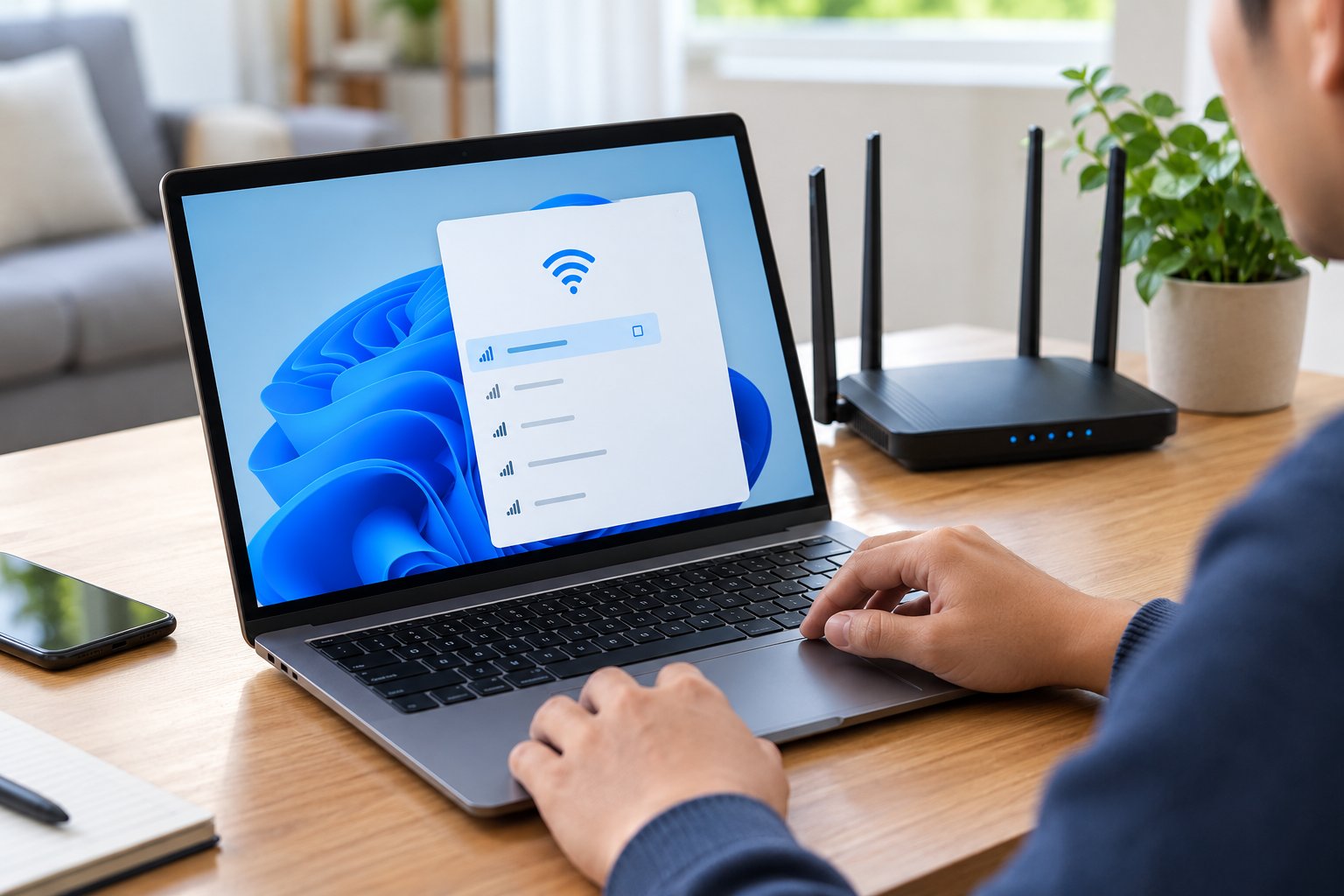
Windows includes troubleshooting tools for diagnosing network problems.
These can identify disabled adapters, some driver issues, and certain connection configuration problems.
The interface differs between Windows 11 and Windows 10.
A troubleshooter is useful when the hardware is present but networking is not working properly. It cannot repair a physically failed wireless card.
Run the troubleshooter in Windows 11
On current Windows 11 systems, network diagnostics are available through the Get Help application.
To use it:
-
Open Start.
-
Search for Get Help.
-
Open the application.
-
Search for connect to network and internet.
-
Select Run network diagnostics when available.
-
Follow the instructions.
Depending on the Windows version, troubleshooting options may also be available through Settings, System, Troubleshoot, and Other troubleshooters.
If the computer has no internet connection and Get Help cannot complete its process, continue using the local troubleshooting methods.
Run the troubleshooter in Windows 10
Windows 10 provides traditional troubleshooting options.
-
Open Settings.
-
Select Update & Security.
-
Open Troubleshoot.
-
Select Additional troubleshooters if available.
-
Choose Network Adapter or Internet Connections.
-
Run the troubleshooter.
Follow the instructions and review the results.
Windows 10 reached the end of standard support on October 14, 2025. Users still running it should consider upgrading to a supported system or using applicable extended security support.
The troubleshooting steps can still be useful on existing Windows 10 installations.
Understand the results
Do not apply every suggested change without reading the diagnosis.
If Windows reports that an adapter is disabled, return to Device Manager and enable it.
If a driver problem is identified, reinstall the correct driver.
If Windows reports that the hardware is not present, focus on device detection rather than repeatedly running network diagnostics.
The next step is useful mainly when Windows recognizes the adapter but still cannot communicate through it.
Step 4: Reset the TCP/IP Stack and Network Settings
The TCP/IP Stack controls important parts of how Windows communicates over networks.
Incorrect or damaged network configuration can cause connection failures even when the hardware works.
However, resetting network settings will not repair a broken WiFi card.
Use this step when the network adapter is visible in Windows but connectivity remains unreliable.
Reset network components with Command Prompt
Open Command Prompt with administrator privileges.
-
Select Start.
-
Search for Command Prompt.
-
Choose Run as administrator.
-
Approve the permission request.
Run the following commands one at a time.
Reset Winsock
netsh winsock reset
This resets the Winsock catalog used by network applications.
Reset TCP/IP
netsh int ip reset
This resets supported TCP/IP configuration components.
Release the current IP address
ipconfig /release
This releases the current DHCP-assigned address on applicable network interfaces.
Request a new IP address
ipconfig /renew
This asks the network's DHCP server for a new address.
Clear the DNS resolver cache
ipconfig /flushdns
This removes cached DNS lookup information stored by Windows.
Restart the computer after completing the reset commands.
If the adapter is missing or disconnected, the release and renew commands may report that no operation can be performed.
That does not necessarily indicate another fault. The commands need a suitable network interface to work.
If the computer uses manually configured IP addresses, VPN software, or workplace network settings, record the configuration before making changes.
Perform Network Reset in Windows 11
Windows 11 includes a broader Network Reset option.
To access it:
-
Open Settings.
-
Select Network & internet.
-
Open Advanced network settings.
-
Select Network reset.
-
Choose Reset now.
-
Confirm the action.
Windows will reset network components and reinstall network adapters as part of the process.
Save your work before starting because Windows will restart.
Afterward, you may need to reconnect to WiFi and reconfigure certain network settings.
Perform Network Reset in Windows 10
On Windows 10:
-
Open Settings.
-
Select Network & Internet.
-
Open Status.
-
Select Network reset.
-
Choose Reset now.
-
Confirm the action.
Wait for the computer to restart.
A Network Reset may affect VPN applications, virtual network switches, custom IP settings, and saved connections.
That is why it should be used after checking drivers and adapter status.
If Windows still cannot detect any physical networking hardware, move on to firmware and hardware checks.
Step 5: Review BIOS/UEFI and Power Management Settings
Windows cannot use network hardware that has been disabled at the firmware level.
BIOS/UEFI controls important system settings before the operating system starts.
Some laptops and motherboards provide options for enabling or disabling built-in wireless and Ethernet controllers.
Check whether networking hardware is enabled
Restart the computer and enter BIOS/UEFI setup using the method recommended by its manufacturer.
The exact process differs between systems.
Once inside, look for settings related to:
-
Wireless LAN.
-
WLAN.
-
Onboard LAN.
-
Integrated Ethernet.
-
Internal network controllers.
If the expected network controller is disabled, enable it and save the changes.
Restart Windows and check Device Manager again.
Do not change unrelated firmware options.
In particular, avoid adjusting storage controller modes, boot settings, or security configuration while troubleshooting a wireless adapter.
Incorrect firmware changes can prevent Windows from starting normally.
If you cannot locate the relevant option, consult the computer manufacturer's service instructions.
Review adapter power management
If WiFi works after a restart but disappears after sleep, power management deserves attention.
-
Open Device Manager.
-
Expand Network adapters.
-
Right-click the wireless adapter.
-
Select Properties.
-
Open the Power Management tab if available.
-
Clear Allow the computer to turn off this device to save power.
-
Select OK.
Some adapters and Windows versions do not show this tab.
That is normal and does not automatically indicate a missing driver.
Restart and test the computer through several normal sleep and wake cycles.
If the adapter still disappears, check for a suitable manufacturer driver or firmware update.
Check manufacturer firmware updates
Computer manufacturers occasionally release BIOS/UEFI updates that address device initialization or hardware compatibility.
Check the official support page for your exact computer model.
Read the release information before installing an update.
Only proceed when the update is appropriate for your system and you can follow the manufacturer's process safely.
Use a dependable power source during firmware installation.
Never interrupt an update in progress.
If the computer belongs to an employer or organization, consult its IT support team before changing firmware settings.
Step 6: Diagnose Faulty Network Hardware or USB Adapters
If drivers, device settings, and firmware checks have not restored the missing adapter, hardware testing becomes necessary.
The goal is to determine whether the adapter itself has failed or whether Windows is preventing it from working.
Test an external USB WiFi adapter
External adapters are relatively easy to isolate.
Follow this process:
-
Disconnect the USB WiFi adapter.
-
Inspect the connector for visible damage.
-
Connect it directly to another compatible USB port.
-
Open Device Manager.
-
Check whether Windows recognizes the device.
-
Test the adapter on another compatible computer if possible.
Use the correct driver during testing.
If the adapter works on another computer, the original system may have a USB controller, driver, or operating system problem.
If it fails on multiple compatible computers, the adapter itself becomes a more likely cause.
Also inspect whether the connection is physically loose.
A USB adapter that repeatedly disconnects when touched or moved may have a damaged connector.
Test an internal WLAN card
Internal WiFi cards require a more careful approach.
Start by checking whether your computer manufacturer provides built-in hardware diagnostics.
Some laptops include preboot diagnostic utilities that can identify installed components or report device failures.
Run the relevant tests if available.
If the internal WLAN card is missing from both Windows and manufacturer diagnostics, the problem may involve the card, its connection, or the motherboard.
A software problem is still possible, so do not treat one failed test as absolute proof.
Opening a laptop to reseat or replace an internal card is not appropriate for every user.
Some devices have difficult-to-access components, and others use integrated wireless hardware.
Check the manufacturer's service documentation and warranty conditions first.
Check an Ethernet controller
For Ethernet problems, begin with the physical connection.
Try a known-working cable.
Use another suitable port on the router or network switch.
Check whether the Ethernet controller appears in Device Manager.
If it appears normally but cannot establish a network link, the cable or port may be responsible.
If the controller is completely absent from Windows, replacing the cable is unlikely to solve the detection problem.
Return to drivers, BIOS/UEFI settings, and hardware diagnostics.
Try a temporary connection method
If the internal WiFi card is unavailable, a compatible USB WiFi adapter or USB-to-Ethernet adapter may provide temporary connectivity.
This can help you download drivers, complete updates, or continue using the computer while investigating the internal component.
Choose an adapter that supports your Windows version and has an available driver.
A working external adapter does not automatically prove the internal WLAN card is dead.
It does show that the computer can establish a network connection through another supported device.
When professional repair makes sense
Contact the manufacturer or a qualified repair technician when:
-
The WLAN card remains absent from system diagnostics.
-
Reinstalling the correct driver does not restore hardware detection.
-
The adapter repeatedly disappears after a fresh restart.
-
The computer shows signs of electrical or liquid damage.
-
Both integrated Ethernet and wireless components fail to initialize.
-
The laptop requires disassembly that is not covered by user-service instructions.
Repeated Windows resets are unlikely to fix a confirmed physical hardware failure.
Next Steps: Verifying Connection to Your Home Network
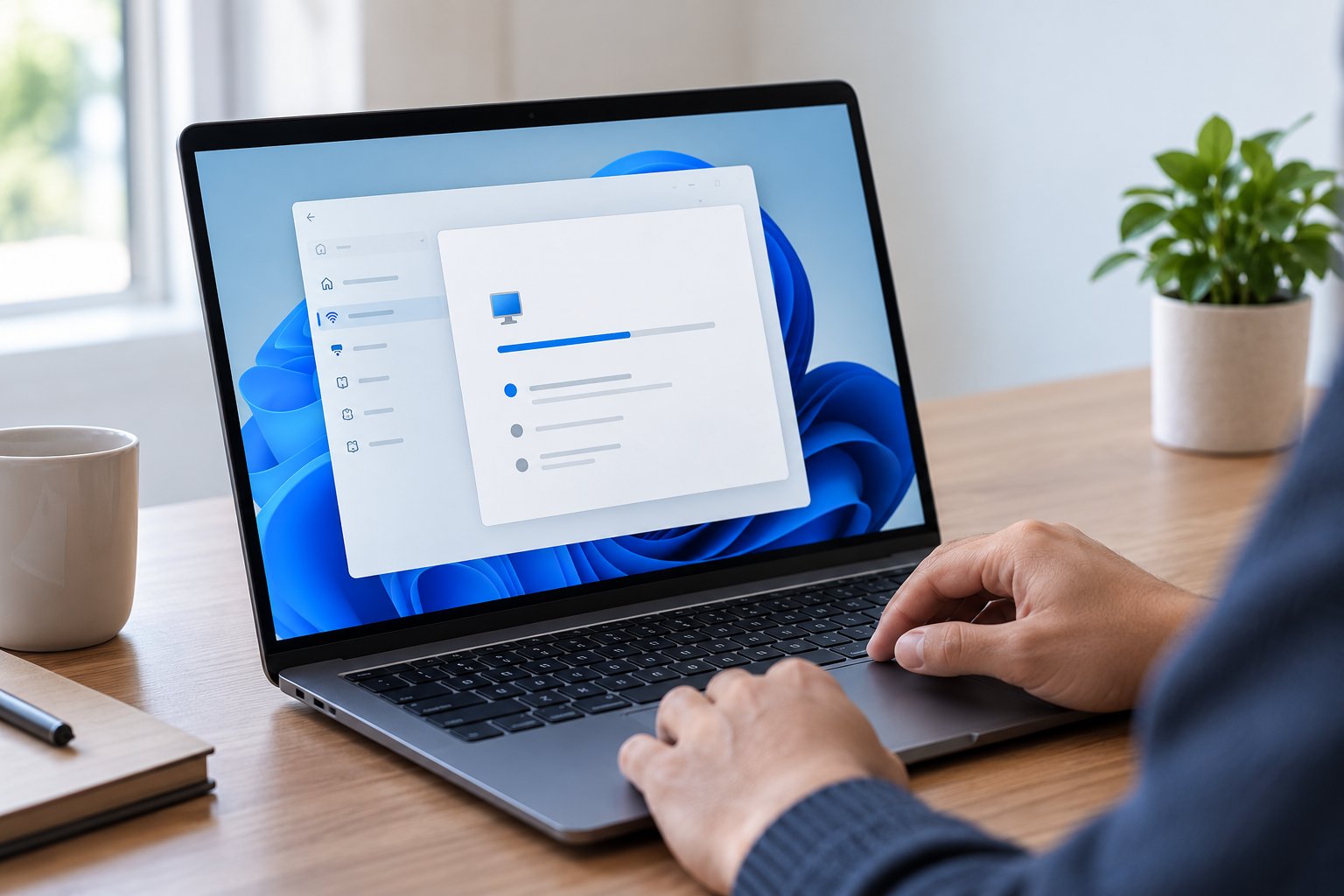
Once the network adapter appears correctly in Device Manager, verify that it can establish a connection.
This is the point where your router, network configuration, and WiFi coverage become relevant.
A detected adapter is a good sign, but the repair is not complete until the connection works reliably.
Confirm WiFi is available
On Windows 11, open Quick Settings from the taskbar and access the WiFi controls.
On Windows 10, open the network menu or go to WiFi settings.
Find your home network name and connect using the correct password.
If the network does not appear, check whether the wireless adapter supports the frequency band used by your router.
For example, an older adapter that supports only 2.4 GHz cannot connect to a network broadcasting exclusively on 5 GHz.
Also confirm that wireless networking is enabled on the computer.
Check the assigned IP address
Open Command Prompt and enter:
ipconfig /all
Find the active wireless or Ethernet adapter.
Check its IPv4 address, default gateway, and DNS information.
Most home networks use DHCP to assign IP addresses automatically.
If the computer receives a self-assigned IPv4 address beginning with 169.254, it may not have received a valid address from the router's DHCP server.
This points toward a network configuration or communication problem rather than automatically proving a hardware fault.
Check the router connection and any manually configured IP settings.
Test communication with your router
Find the Default Gateway address in the output from ipconfig.
Then run the ping command followed by that address.
For example, if your router uses 192.168.1.1, enter:
ping 192.168.1.1
A successful response indicates that the computer can communicate with the destination through the tested network path.
A failed ping does not always prove the connection is broken because some routers block or ignore these requests.
You can also test the router's supported management interface or access another known device on the local network.
Separate WiFi problems from internet problems
A computer can be connected to WiFi without having internet access.
If your computer connects to the router but websites do not load, test another device on the same network.
If every device has lost internet access, check the modem, router, and internet service.
If other devices work normally, investigate the affected computer's DNS settings, IP configuration, VPN, proxy settings, and security software.
Avoid reinstalling a working wireless driver when the problem is clearly outside hardware detection.
Improve WiFi coverage if needed
After restoring the network adapter, you may notice that the connection works near the router but becomes unreliable farther away.
That suggests a possible wireless coverage problem.
Try using the computer in the same room as the router.
If the connection becomes more stable, investigate router placement and signal obstructions.
ROOXIS provides practical router placement tips for improving wireless coverage.
In general, place the router in an open location rather than inside a closed cabinet or behind large metal objects.
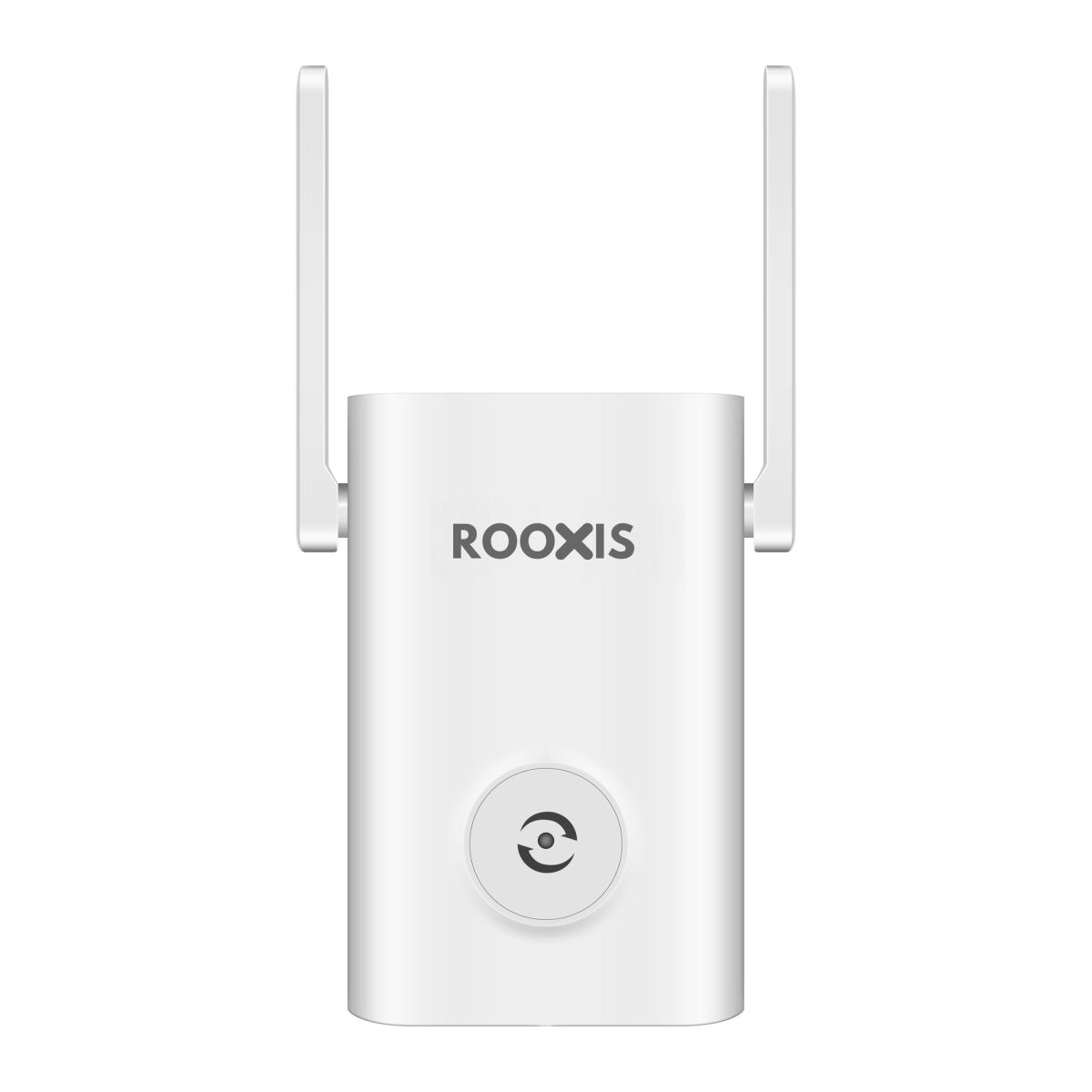
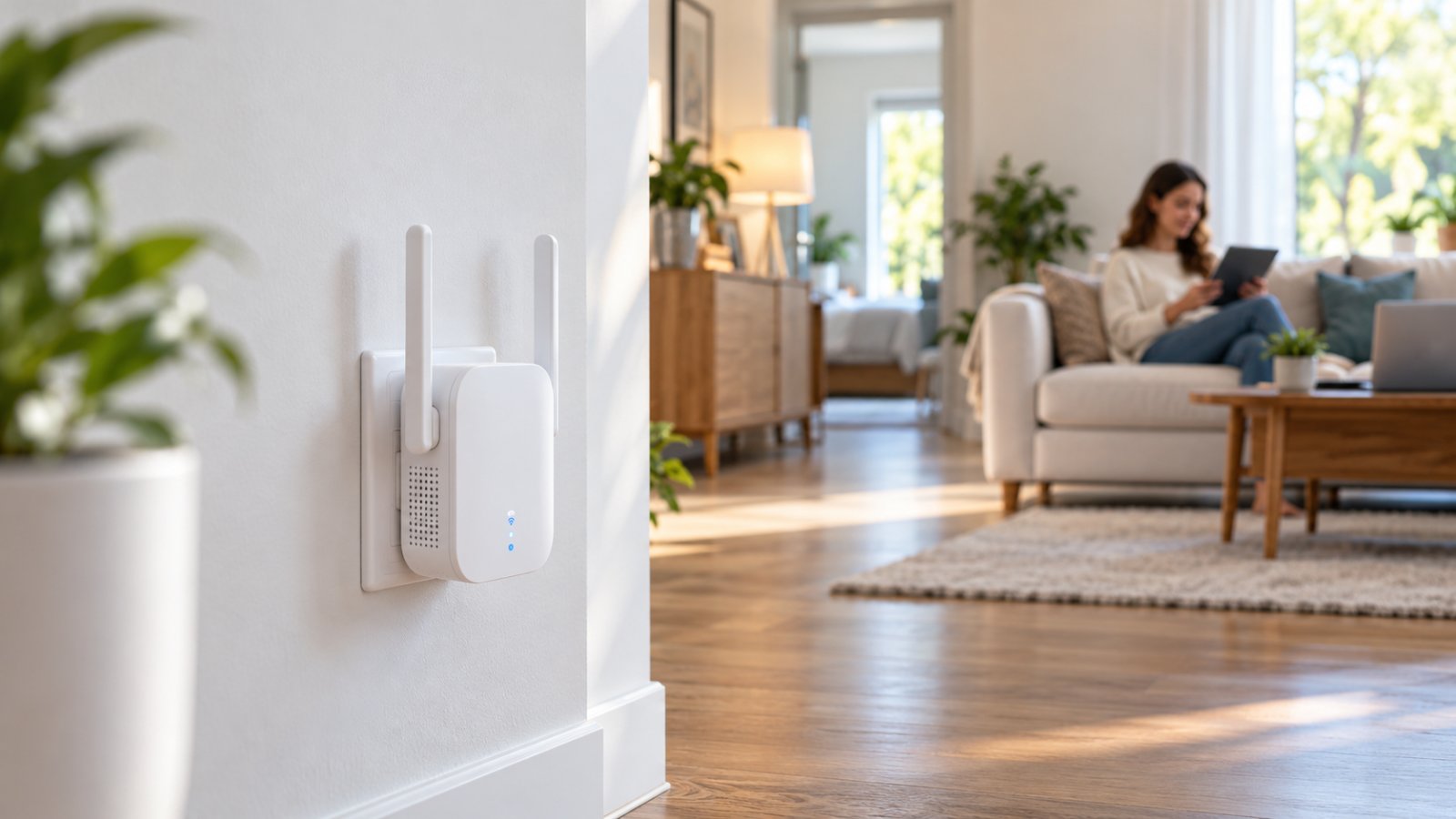
If the signal does not reliably reach another room, a compatible range extender may help.
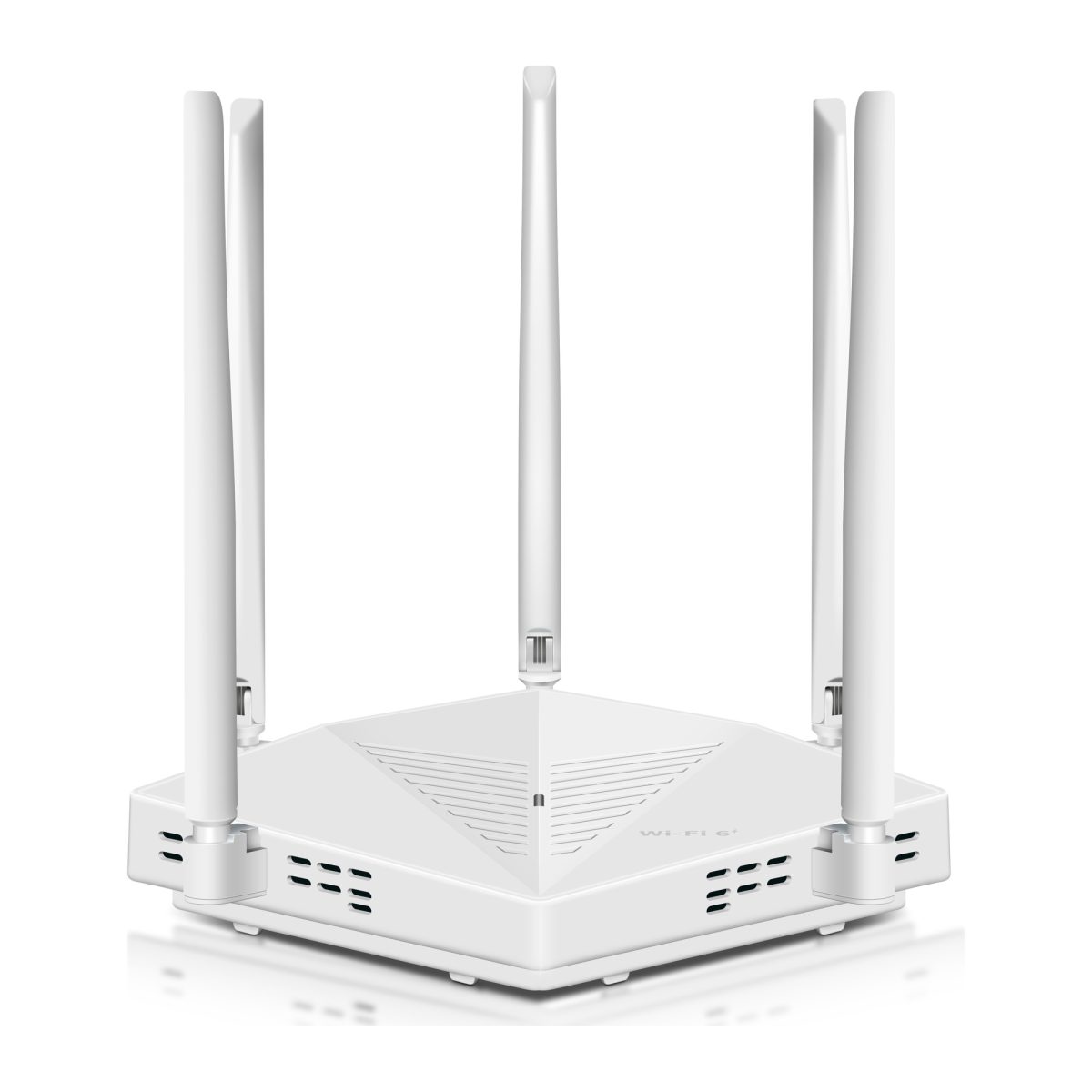
ROOXIS offers WiFi routers and range extenders intended for everyday home connectivity.
Place an extender somewhere it can still receive a good signal from the original router, not in a location where the signal has already disappeared.
Remember that an extender cannot repair a missing Windows network adapter.
It becomes useful only after the computer's networking hardware is functioning.
Final connection checklist
Before considering the problem resolved, confirm that:
-
The physical network adapter appears in Device Manager.
-
Device Manager does not report an unresolved device problem.
-
WiFi or Ethernet can be enabled normally.
-
The computer can connect to the intended network.
-
Windows receives a usable IP configuration.
-
Internet access works when the broadband service is available.
-
The connection survives a normal restart.
-
Wireless networking continues functioning after sleep and wake cycles.
If the adapter disappears again, return to the driver, firmware, and power management checks rather than changing router settings repeatedly.
Frequently Asked Questions
Why does Windows say it did not detect any networking hardware?
Windows displays this message when it cannot recognize or initialize a usable network adapter. Common causes include missing drivers, disabled hardware, BIOS/UEFI configuration, or a faulty wireless or Ethernet component. Device Manager is the best starting point because it can show whether the adapter is missing, disabled, or reporting a problem.
How do I reinstall a missing Wi-Fi adapter in Device Manager?
Open Device Manager, expand Network adapters, and locate the wireless adapter. If it appears, you can uninstall the affected device and restart Windows so the operating system attempts to detect it again. If it is completely missing, check Other devices and install the correct driver from the computer manufacturer's official support website.
Can a Windows update cause network hardware to disappear?
Yes. A Windows update can occasionally introduce a driver compatibility or initialization problem that makes an adapter unavailable. If the issue started immediately after an update, check the adapter's Driver tab in Device Manager and use Roll Back Driver if the option is available. You can also install a supported driver provided by the computer manufacturer.
How can I tell if my internal Wi-Fi card is dead?
A hardware failure becomes more likely when the WLAN card remains missing after driver installation, BIOS/UEFI checks, and restarts. Manufacturer hardware diagnostics may help determine whether the component is detected outside Windows. If the device remains absent, a qualified technician may need to inspect the internal card and its connection before confirming a hardware failure.
Conclusion
The error windows did not detect any networking hardware usually comes down to a missing driver, disabled adapter, firmware setting, or physical hardware problem.
Start with Device Manager and basic hardware checks. If Windows recognizes the adapter, repair the driver and investigate network settings. If the adapter remains missing, focus on BIOS/UEFI configuration and hardware diagnostics.
Once the adapter is functioning, check that your home network provides reliable connectivity.
ROOXIS offers WiFi routers and range extenders that can help improve wireless coverage after your computer's network hardware is working correctly. Explore ROOXIS products at rooxis.com or on Amazon to find equipment suited to your home's connectivity needs.